


How to code as a clinician with no coding experience
Let’s have some real talk, clinicians. How often do you get annoyed with the software and IT systems you use in your everyday clinical work? When you scroll through endless lists of documents and still can’t find the one thing you need to know about your patient? When you start wondering if you should have studied administration instead of medicine?
Unfortunately, this post won’t solve all your problems. But I want to show you, from a doctor’s perspective, that you can build great demos yourself. You know your struggles best, so you should lead the charge in solving them. Corti’s API (Application Programming Interface) is a set of building blocks you can use to build AI-powered apps for your clinical workflows, even if you’ve never written a line of code before. The trick is agentic coding.
A demo of a clinical questionnaire autofill app I’ve built using Corti S1 and the Corti API.
What is agentic coding?
Agentic coding means that you just describe what you want to code in plain language. Your agent then writes the code, runs it, reads the error messages and fixes its own mistakes.
In this setup, the agent runs on Corti Models and Corti S1 is an AI model like others you may know (ChatGPT, Claude, Gemini, etc.). For clinicians, using Corti Models is a nice bonus, because EU inference runs entirely on Corti's European infrastructure.
What you need
- A computer (macOS or Windows)
- 20 minutes
- A chai latte (or whatever you enjoy)
Step 1: Create a free account on the Corti Console
Corti Console is the command room of your agentic coding spaceship. In order to use Corti Models, you need to create an account on https://console.corti.app/. You don’t need to provide a credit card, and your first $50 in credits are free.
Step 2: Install Node.js®
Go to https://nodejs.org/en/download, download the installer for macOS or Windows and install it. You won't use Node.js® directly, but the Corti setup tool needs it, and so will most of the apps your agent builds.
Step 3: Install the OpenCode Desktop
OpenCode Desktop is the coding agent we need. Go to https://opencode.ai/download, download the app for your system and install it like any other app. Open it once to check that it starts. We’ll come back to it in a minute.
Step 4: Connect OpenCode to Corti Models
This is the one step where you need the terminal. Don’t be scared of it. It’s just a box where you type instructions instead of clicking buttons, and nothing in this guide can break your computer.
Open the terminal (on macOS: search Terminal; on Windows: search Command Prompt) and paste this into the terminal (Cmd+V on macOS, Ctrl+V on Windows) and press Enter:
npx @corti/cli models init
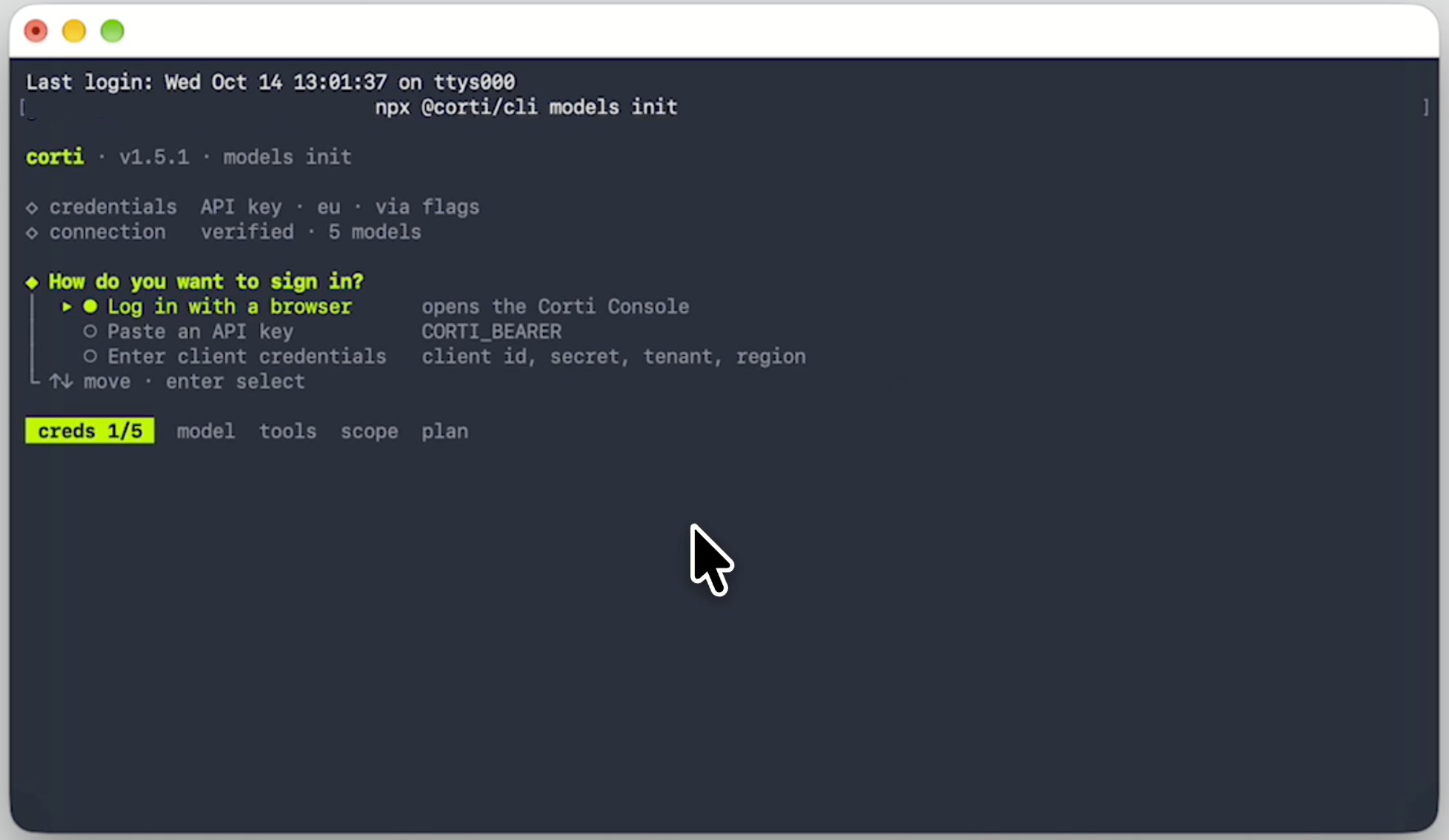
When it asks whether it's ok to install a package, type y and press Enter.
The first question is how you want to sign in. Log in with a browser is already selected, so just press Enter. The setup shows you a one-time code and opens the Corti Console in your browser. You approve the sign-in there, and the terminal carries on by itself.
After that, it asks a few questions. You can press Enter at every step. Make sure OpenCode is ticked in the list of agents and you choose Global. If it offers to update your shell startup file, say yes.
When it’s done, close the terminal. Then quit the OpenCode app completely and open it again (important!). This makes sure it picks up your new settings.
Step 5: Get to know the OpenCode app
Here’s a quick tour, even though everything looks quite similar to other AI chatbots you might have used.
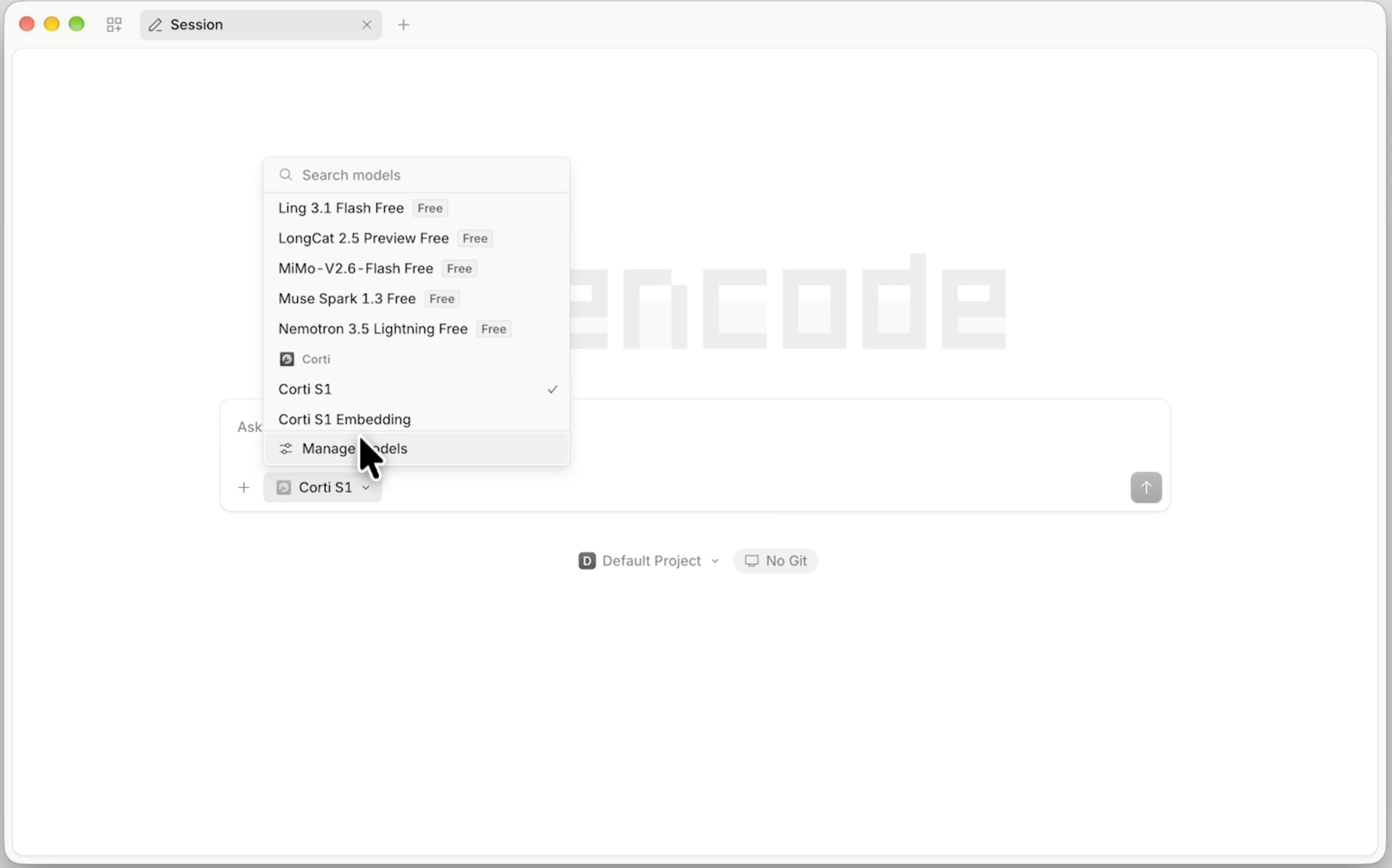
- Before you write your first prompt, open
Manage models, find Corti and make sure Corti S1 is selected. If you don’t see Corti in the list, quit the app, open it again and check again. Still nothing? Run step 4 once more.
- Every app you want to build gets its own project = folder. Don’t reuse a project for a different idea, otherwise your agent gets confused (and so will you).
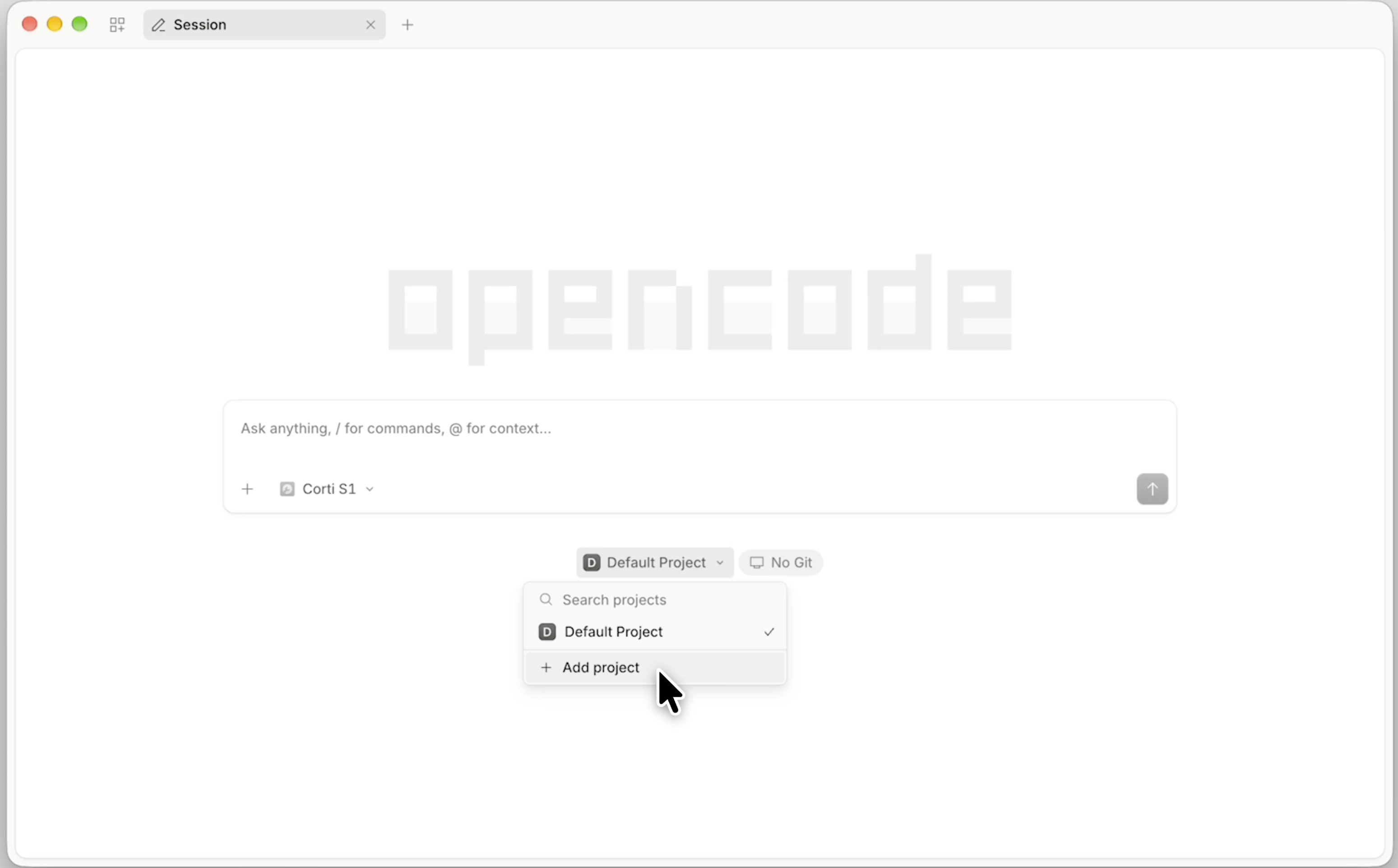
- Press the home icon to see all your projects and jump back into an earlier one.
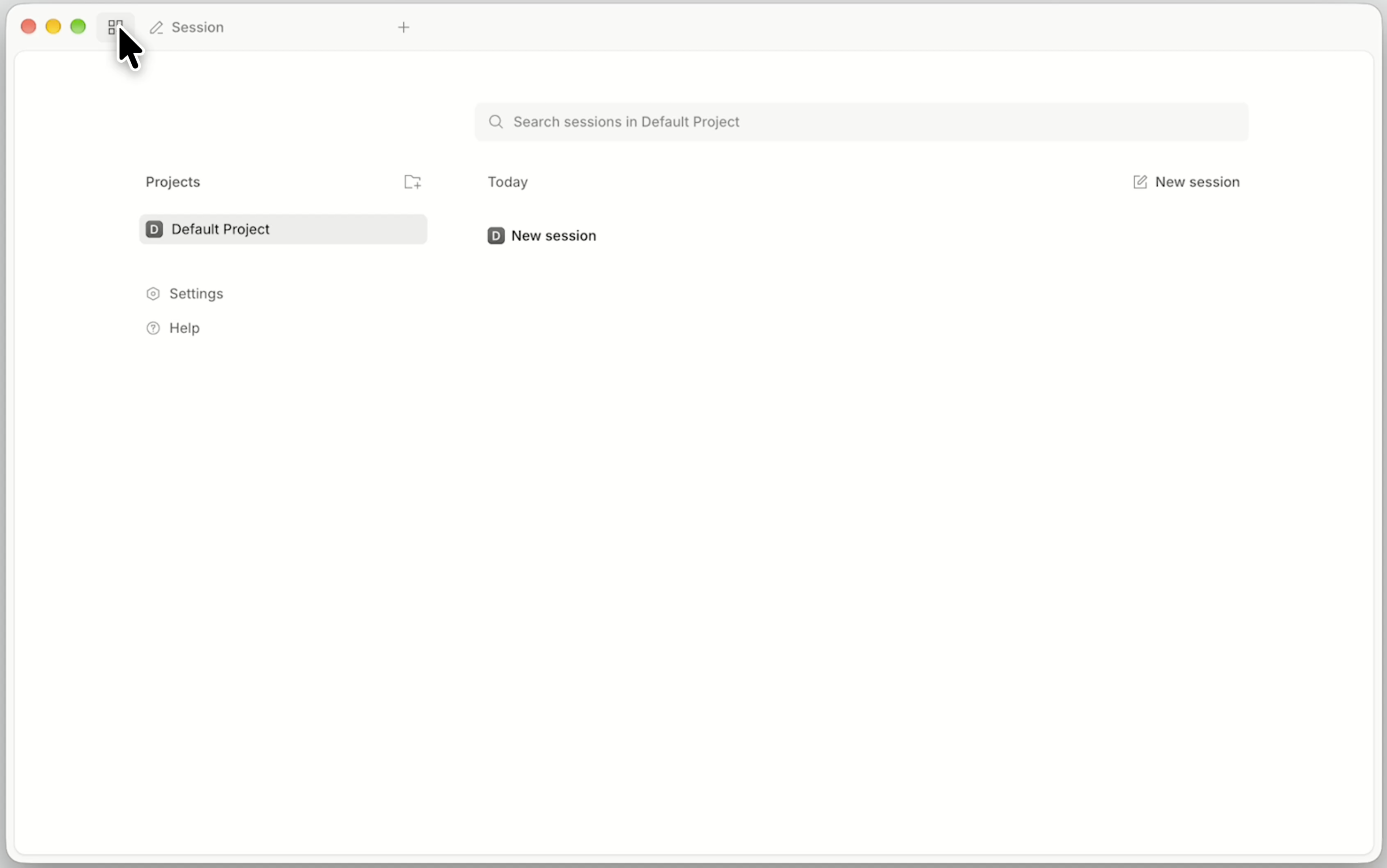
Step 6: Your first build (the fun part)
You can start with your own idea right away. Create a new project and type your idea into the prompt field, f.e.:
Build a medical dictation web app with Corti API. Run the app locally.
Before it runs something, the agent sometimes asks if it’s allowed to. If you don’t know what it means, ask it. It doesn't judge.
At some point it will ask for Corti API credentials for the app itself. Open the Corti Console, go to Developer quickstart > Code with AI tools and use the Copy all as .env variables button, then paste it where the agent tells you. This lets your app use Corti’s functionality.
When it's done, the agent starts the app and gives you a link, usually something like http://localhost:3000. Open it in your browser. You just built an app.
Now the fun part: keep talking to it. "Make the buttons bigger." "Add a section for allergies." "Make it look less like 2004." Start building your own thing.
Bonus 1: Give your agent access to the Corti docs
The Corti MCP (Model Context Protocol) gives your agent direct access to the Corti documentation, so it always knows how to use Corti’s features best.
The easiest way to set it up is to ask OpenCode to do it for you:
Add the Corti MCP server to my OpenCode config. It's a remote MCP server at https://docs.corti.ai/mcp
Then quit the OpenCode app and open it again.
Bonus 2: corti-bridge, for Claude Code fans
Some of you already use Claude Code and like it. Fair enough, so do I. corti-bridge lets you keep the Claude Code experience while running on Corti Models, and it doesn’t change your normal Claude Code settings. If you’re interested, just ask your agent to install corti-bridge from github.com/corticph/corti-bridge and let it do the work. After installation, you launch it by typing corti-bridge into the terminal. It currently works on Mac and Linux.
Bonus 3: VS Code, if you want to dig deeper
At some point in your agentic coding journey you may get curious about what your agent is actually building. That’s where VS Code comes in. It makes it easy to view your project structure and read the code. It has an integrated terminal, where you can type opencode and use Corti Models for agentic coding.
If something goes wrong (don’t worry)
Things will break. That's normal, and it's not because you did something stupid. Here's what helps.
- Paste the error back to the agent. Red text somewhere? Copy it, paste it into the chat and say "this happened". Nine times out of ten, it fixes it.
- Ask it to explain. "Explain what you just did like I'm a first-year medical student" works surprisingly well.
- Take small steps. Don't describe your whole dream app in one message. Build the first screen, check it works, then add the next thing. Same as titrating a dose.
- Remember it's a demo. Use mock patient data and review everything properly before it goes anywhere near real patients.
Go build the thing
You know that problem everyone moans about? The one where someone always says "there should be an app for that"? You can build a demo of it this weekend. It won't be perfect, but you’ll be surprised by what you can achieve with no coding experience.
If I can do it, so can you. Happy building. And feel free to share your demos.
More guides to explore



Build faster. Ship safer. Scale smarter.
Get started with healthcare-native APIs built to power real clinical workflows.